How GistBrief works: from open tab to searchable brief in three steps
Save, Brief, Find. A behind-the-scenes look at what happens between pasting a link and getting a tagged summary in your library.
Farid Vatani
3 min read
How GistBrief works: from open tab to searchable brief in three steps
GistBrief's promise fits in one line: save any link, get the gist in seconds. But a lot happens between "paste" and "done," and knowing what goes on makes it easier to trust the result.
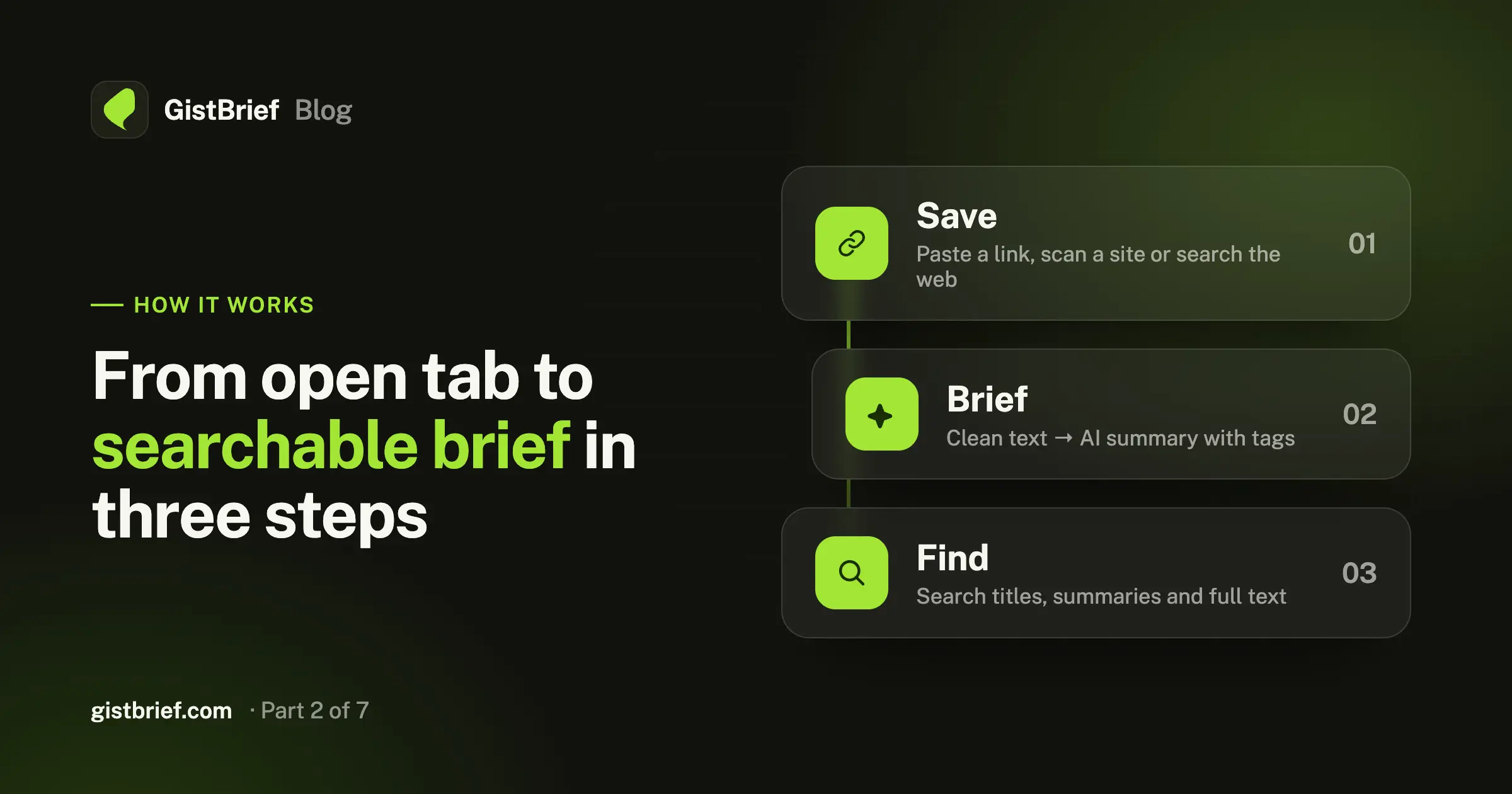
Here's the whole trip, in three steps.
Step 1: Save
Everything starts with a link. There are a few ways to give GistBrief one:
- Paste a single link into the Save dialog in your dashboard.
- Scan a whole site: give it a blog or docs site and GistBrief lists the pages it finds, so you can pick the ones you want.
- Search the web: type a topic and choose from the results, without opening ten tabs.
- Save from where you're reading: with the browser extension, a bookmarklet, or your phone's Share menu. (More on that in Save from anywhere.)
When you save, you can tick "Generate a summary" to get the brief right away. You can also save now and summarize later.
It keeps working after you close the tab
The saving happens on our servers, not in your browser. Click Save, close the laptop, catch your train. The import keeps going in the background and will be in your library when you're back.
Step 2: Brief
This is where the work happens.
First, GistBrief fetches the page. It reads the page the way you would, then removes the clutter: navigation menus, cookie banners, sign-up pop-ups, ads, related links and comments. What's left is the clean article text, stored with the item so you can read it in full inside GistBrief later.
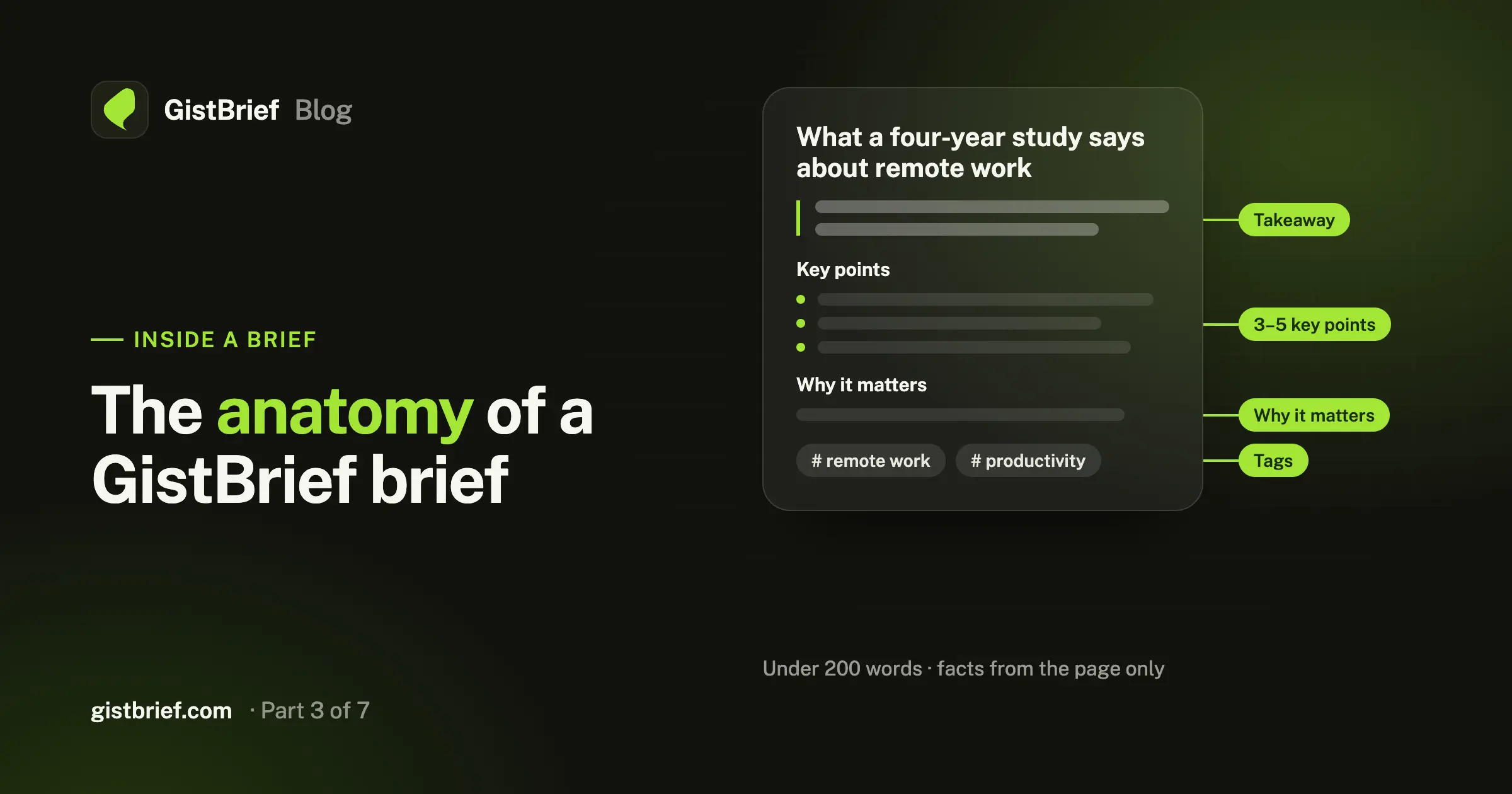
Then an AI model writes the brief. Every brief follows the same structure:
Takeaway: one or two plain sentences with the core point.
Key points: 3 to 5 bullets, each one a concrete fact, number, argument or step.
Why it matters: who this is useful for and what they can do with it.
The model gets strict rules. It may only use what the page says, never invent facts, names or quotes, keep the specifics (figures, dates, versions), and stay under 200 words. It also changes approach by page type: a tutorial gets its key steps, a news story gets what happened and who's involved, an opinion piece gets the author's position and arguments, a research paper gets the question, method and findings.
Finally, it adds tags. Three to five short topic tags like typescript, sleep or remote work, never vague labels like "article" or "blog post." They're ordered from most specific to most general, so related reading clusters together.
Briefs and tags are written in the page's own language, so a Spanish article gets a Spanish brief.
What if something goes wrong?
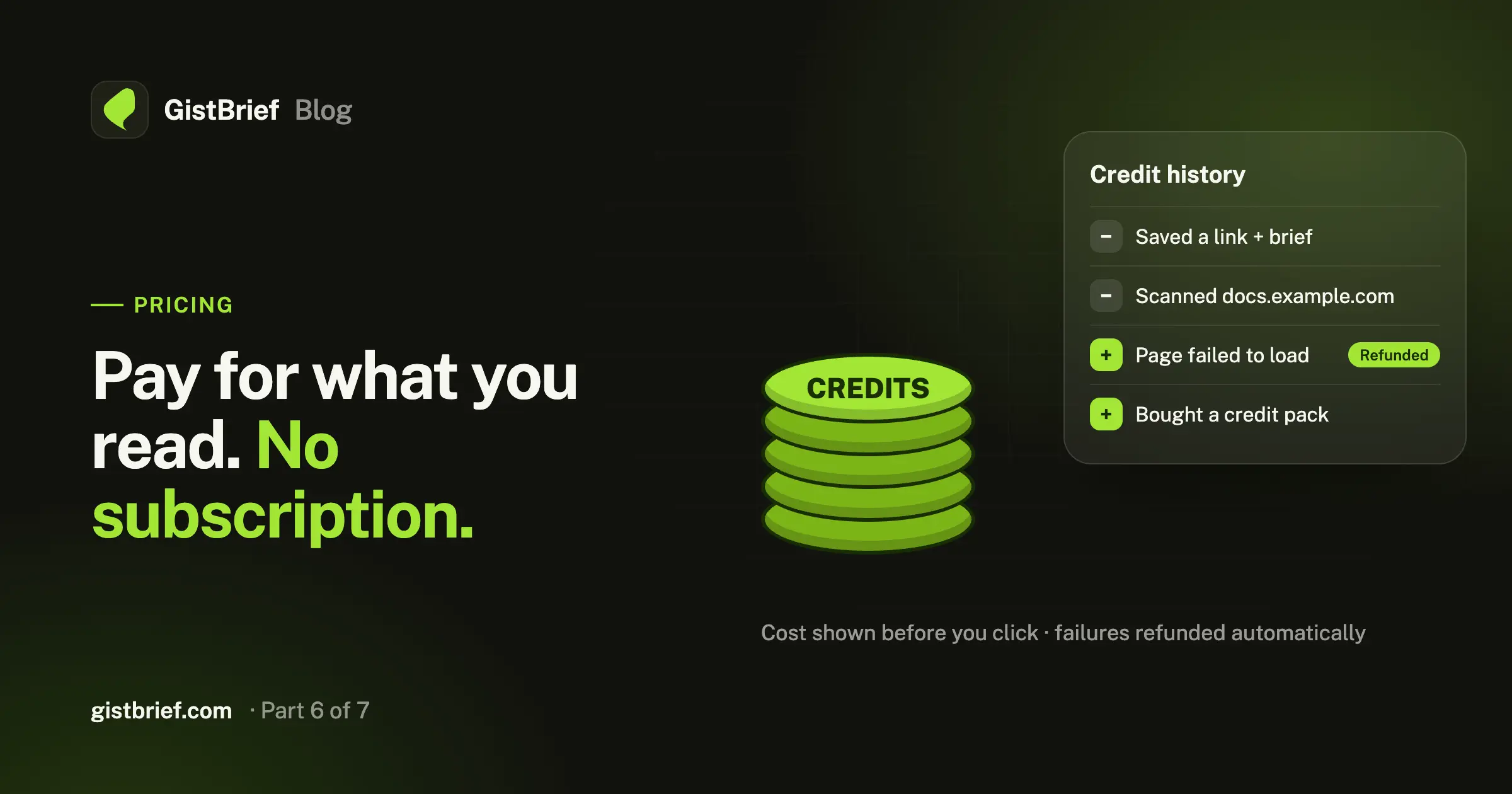
Some pages can't be read: they're behind a login, a paywall, or just down. When that happens, the item is marked as failed and the credits for it go back to your balance automatically. You can hit Retry later if the page comes back. Anything that gets stuck for too long is cleaned up and refunded the same way.
Step 3: Find
A library is only useful if you can get things back out of it.
Your dashboard shows every saved item as a card with its title, takeaway and tags. From there you can:
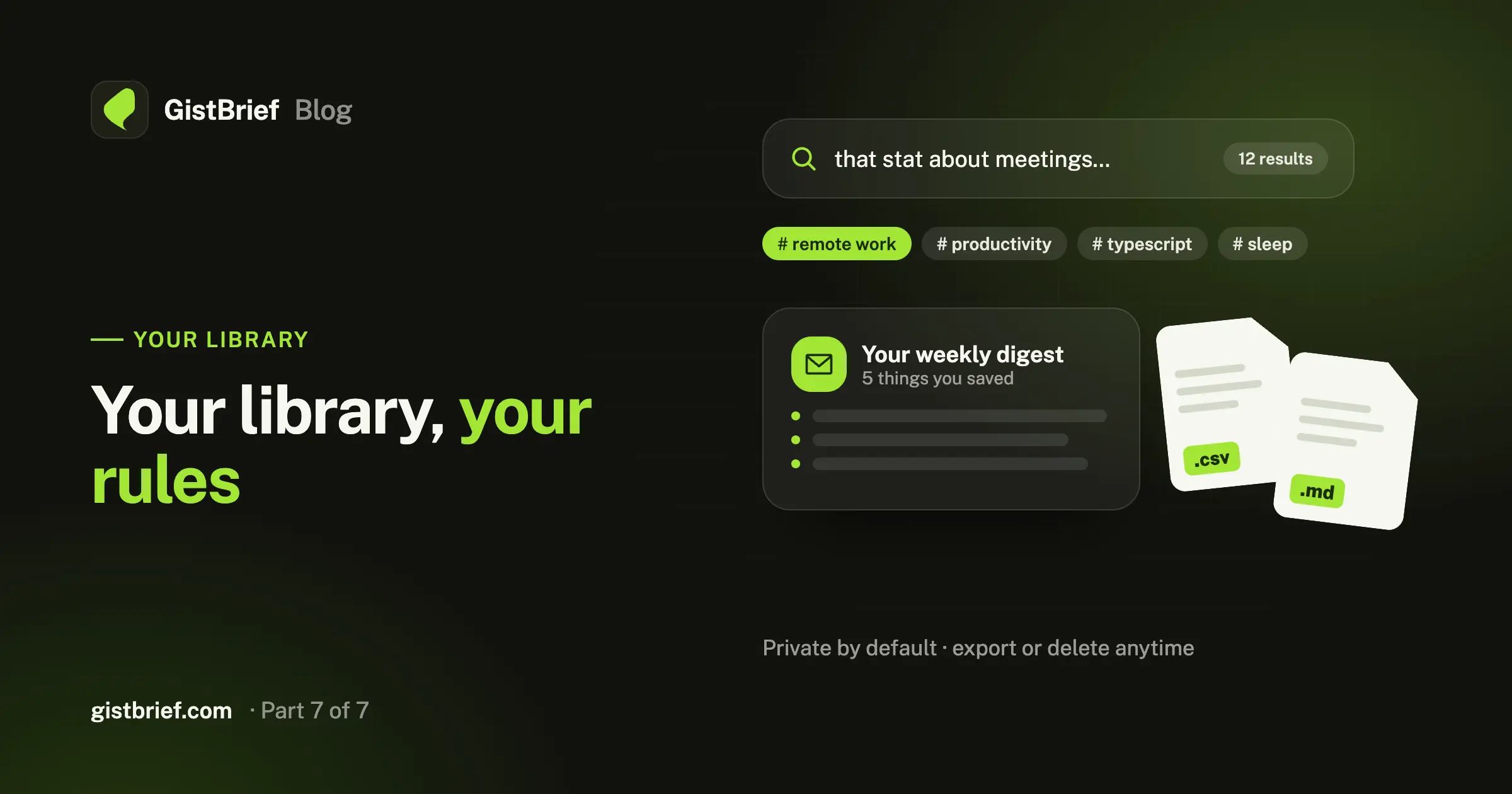
- Search titles, summaries and the full text of everything you've saved. Even if you only remember one phrase from deep in an article, search will find it.
- Click any tag to see everything related.
- Filter by status to see what's still processing, what's ready, or what needs a retry.
- Open an item to read the full brief, see the author and publish date, read the full cleaned-up content, or jump back to the original.
And if you'd like your library to come to you, turn on the weekly digest: once a week you get an email with the latest things you saved and their summaries.
The short version
That's it. Three steps, and most of them happen without you.