Save from anywhere: the GistBrief extension, bookmarklet and phone Share menu
Save the page you're reading in one click, from Chrome, Safari, Firefox or your Android phone, without copying links around. Plus what the extension can and can't see.
Farid Vatani
3 min read
Save from anywhere: the GistBrief extension, bookmarklet and phone Share menu
The best moment to save something is the moment you find it. Copying a URL, switching tabs, opening an app and pasting it in is just enough friction that you won't bother, and the link is lost.
So GistBrief meets you where you read. There are three ways to save the page in front of you in one step.
1. The browser extension
For Chrome, Edge, Brave and Opera on desktop.
Once it's installed, you can save the page you're reading in three ways:
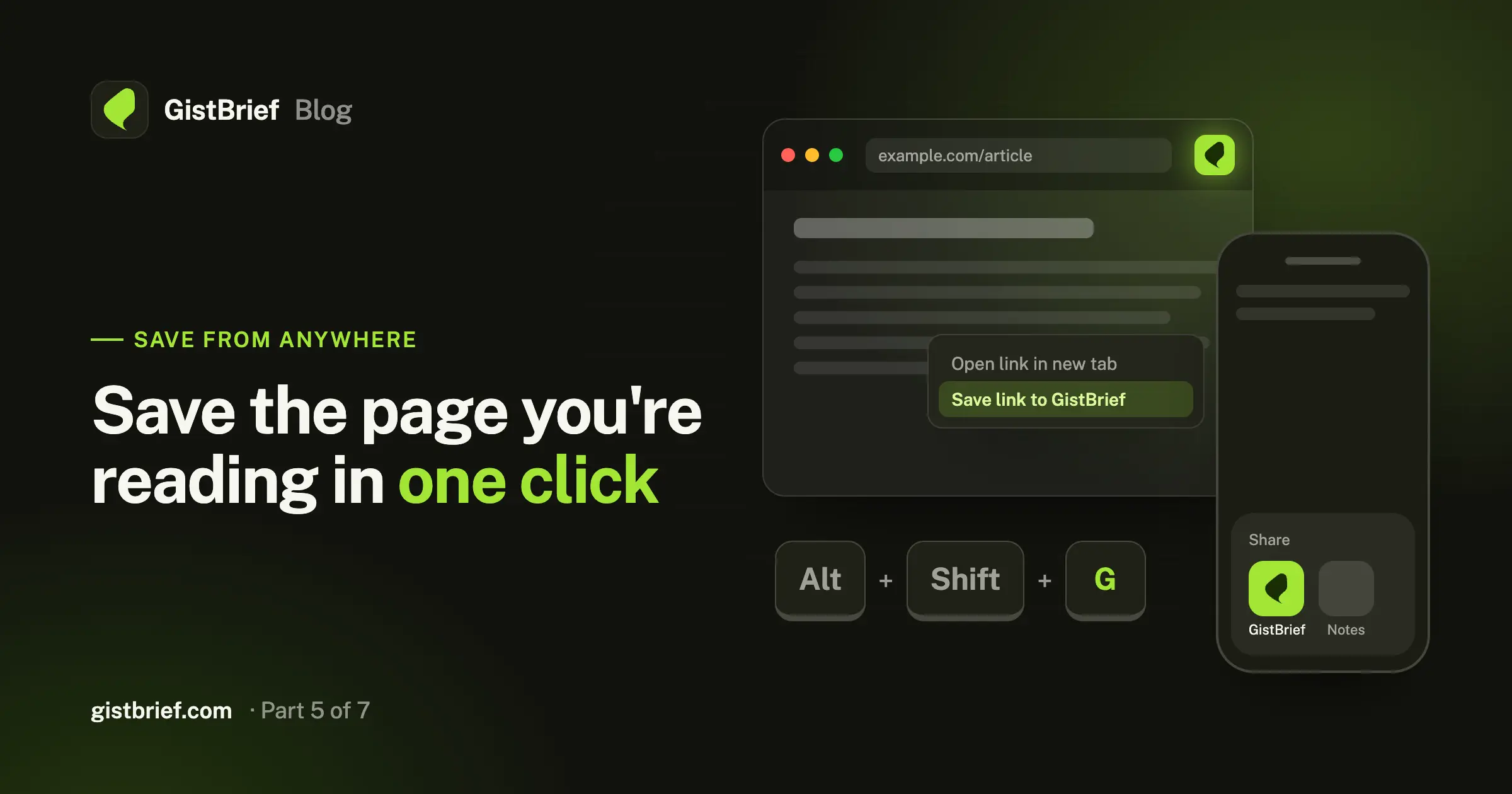
- Click the GistBrief button in your toolbar.
- Press
Alt+Shift+G(Option+Shift+Gon a Mac). - Right-click and choose Save page to GistBrief, or right-click any link and choose Save link to GistBrief to save it without opening it.
Each one opens GistBrief's Save page with the link already filled in. Tick "Generate a summary" if you want a brief, click Save, and keep reading.
What the extension can (and can't) see
We built the extension around one idea: it should know as little as possible.
- It only uses two permissions:
activeTabandcontextMenus. That's why Chrome doesn't show the "read and change your data on all websites" warning when you install it. - It reads a page's address and title only when you click, press the shortcut, or pick the menu item. Never in the background.
- It has no access to page content, your browsing history or your other tabs.
- It has no login, no stored data, no analytics and no tracking. Your normal GistBrief session in the browser does the saving.
- It only sends regular web addresses. If a link contains a username or password in it, that part is removed first.
- It contains no remote code and no third-party libraries.
2. The bookmarklet
For every desktop browser, including Safari and Firefox, and for Safari on iPhone.
A bookmarklet is a bookmark that does something. Add it once to your bookmarks bar, then click it on any page to save that page to GistBrief.
Browsers don't let websites add bookmarks for you, so setup takes one quick step. Go to Account → Save from anywhere in your dashboard, then either:
- Drag the "Save to GistBrief" button onto your bookmarks bar, or
- Copy it and paste it as the address of a new bookmark.
Like the extension, the bookmarklet only passes along the page's address and title, and it opens GistBrief in a separate tab that can't reach back into the page you were reading.
3. Your phone's Share menu
For Android, plus a home-screen shortcut on iPhone.
GistBrief can be installed as an app straight from your browser.
- On Android, install it and GistBrief appears in the Share menu of any app. Reading something in your news app, on Reddit or in your browser? Tap Share → GistBrief and it's saved.
- On iPhone, open GistBrief in Safari and use Share → Add to Home Screen to get the app icon, then use the bookmarklet in Safari to save pages.
Saving runs on our servers, so once you tap Save you can put the phone away. The brief will be waiting in your library.
Set it up in under a minute
New to GistBrief? "Save from anywhere" is one of the three steps in your getting-started checklist. Open it from the dashboard, pick the option that fits how you read, and the step ticks itself off the first time you save that way.
Your reading list shouldn't depend on remembering to come back. Save it the moment you find it.