One link, a whole site, or the whole web: three ways to build your GistBrief library
Save a single page, scan an entire blog or docs site, or search the web for a topic. Here's when to use each, with practical examples.
Farid Vatani
3 min read
One link, a whole site, or the whole web: three ways to build your GistBrief library
Most read-later tools have one way in: paste a URL. That's fine for the article your friend sent. It's slow when you want to learn a new framework's docs, catch up on a favorite writer's archive, or research a topic from scratch.
GistBrief gives you three ways to fill your library, all from the same Save dialog. Here's how each one works and when to use it.
1. Save one link
Best for: the article in front of you, a link from a colleague, a page you'll need again.
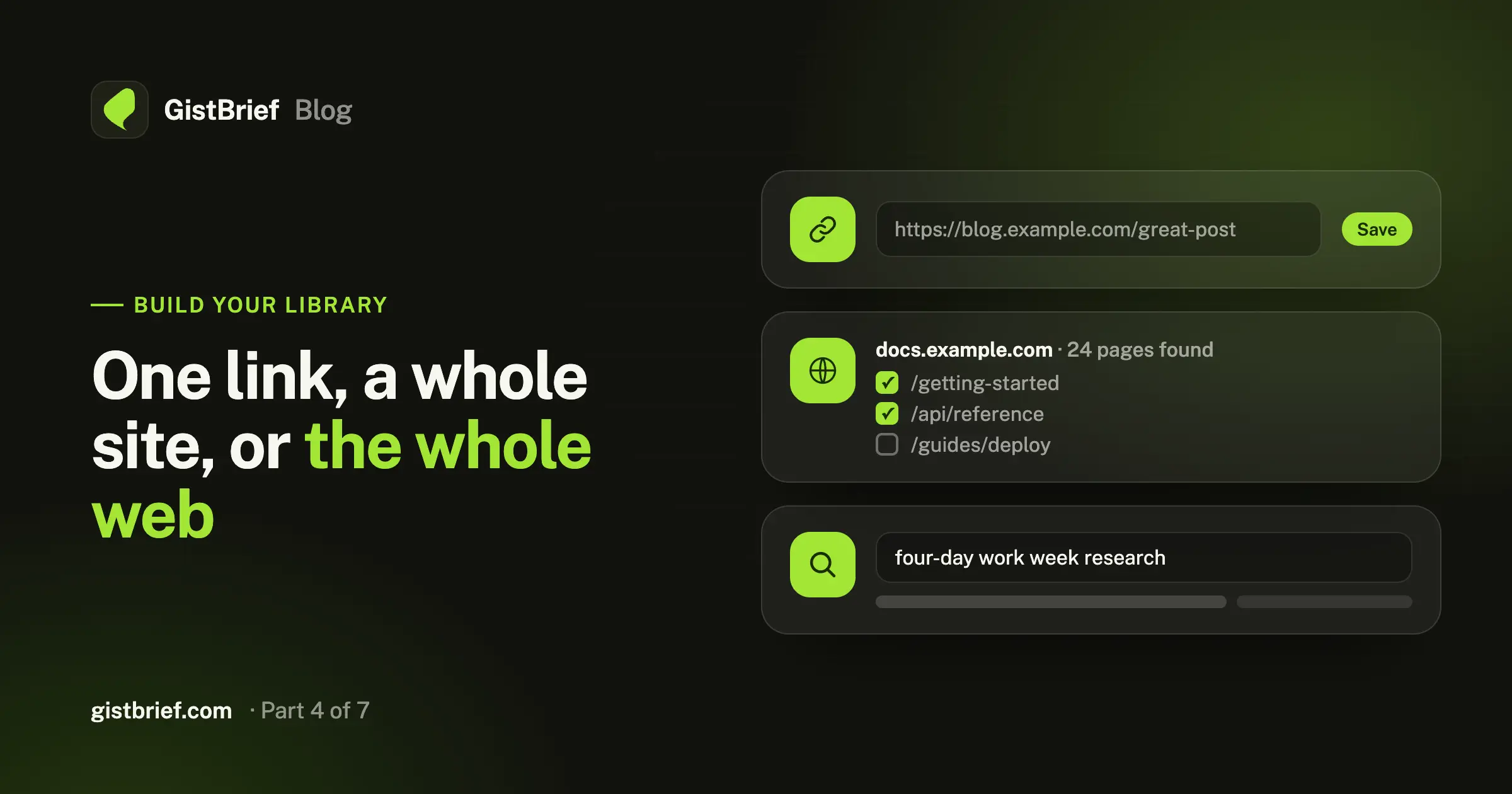
Paste the link, tick "Generate a summary" if you want the brief right away, and click Save. GistBrief fetches the page, removes the clutter, and adds it to your library with a brief and tags.
That's the everyday move. If you don't have a link handy when you first sign up, the getting-started checklist can offer a "Try an example" link, so you can see a brief before you even look for a URL.
Tip: you don't have to come to GistBrief to do this. The browser extension, bookmarklet and phone Share menu all open this same Save step for whatever page you're on. See Save from anywhere.
2. Scan a whole site
Best for: documentation, a blog archive, a course, a company's knowledge base.
Give GistBrief the address of a site and it finds the pages on it and lists them for you. Then you choose:
- Tick only the pages you care about (say, the "Getting started" and "API reference" sections of a docs site),
- or select a batch and save them all at once.
Every page you pick goes into your library as its own item, with its own brief and tags. Now you can search across the entire docs site, down to the full text of every page, and read a quick summary of each page before deciding which one to read in full.
Example: you're picking up a new framework next sprint. Scan its docs, save the 15 pages that matter, and spend your first hour reading briefs instead of clicking through a sidebar.
And if the scan finds nothing on a site, you aren't charged.
3. Search the web
Best for: starting research on a topic, collecting sources, "what's out there on X?"
Type a topic. GistBrief searches the web and shows you useful pages, and you choose which ones to save. No ten-tab spiral, no copying links one by one.
Example: you're writing a proposal on four-day work weeks. Search the topic, save the six most credible sources with summaries, and you have a briefed reading list in a couple of minutes. The tags will even show you the sub-topics the sources cover.
If a search comes back empty, the credits are returned to your balance automatically.
Which one should I use?
What it costs
Each option shows its credit cost on the button before you click, so there are no surprises. Scanning a site and searching the web each cost a few credits for the lookup. Each page you then save costs the same as saving it one by one. And anything that fails is refunded on its own.
There's no subscription. Use as much or as little as you need. (More on credits here.)
Start with a site you already love
Pick a blog you keep meaning to catch up on, scan it, and let GistBrief brief the archive for you.